
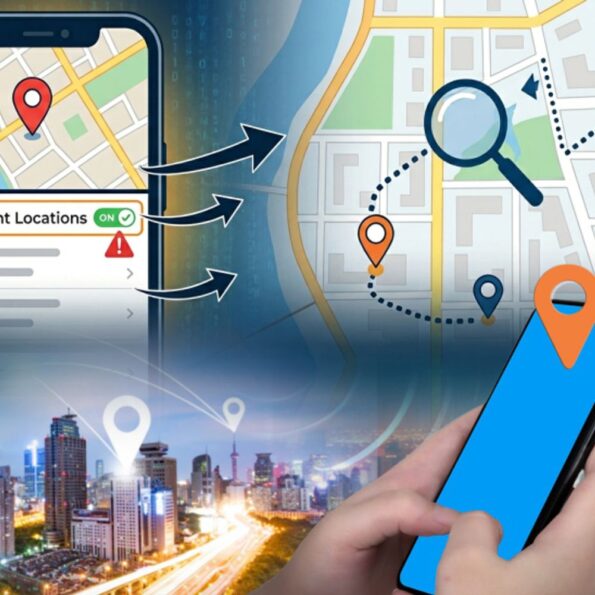
Your smartphone may be sharing your location more often than you think. Many apps and even system services track where you go sometimes without clearly telling you. The surprising part? The controls to stop this tracking already exist on both iPhone and Android. They’re just hidden deep inside settings. Here’s how to find them and take back control of your location data. Hidden iPhone settings that track your location Even Apple’s built-in services collect location information silently. To check them: Go to Settings > Privacy Security > Location Services > System Services Inside this section, you’ll see options like iPhone Analytics and Routing Traffic. These features often run in the background using your location automatically. Turn off “Significant Locations” One of the most important settings here is Significant Locations. This feature keeps a record of places you visit frequently, such as your home, office, and travel routes. While it helps improve suggestions and maps, it also builds a detailed location history. To disable it: Disable Precise Location for Apps Many apps don’t need your exact GPS position. Go to:
Settings > Privacy Security > Location Services > Select an app Switch off Precise Location. The app will then only see a general area (around 10 km), not your exact position. Stop apps from tracking you for ads To prevent apps from following your activity across other apps and websites. Go to:
Settings > Privacy Security > Tracking. Turn off Allow Apps to Request to Track > Ask Apps to Stop Tracking. Android settings you should change immediately Android phones also store detailed location activity through Google services. Pause your location history. Google keeps a timeline of places you visit using Location History. Find it here:
Settings > Open your Google profile > Manage your Google Account > Data and Privacy > Location History Pause it and delete old data if needed. Turn off Wi-Fi and Bluetooth scanning Many users don’t know this: Android can still scan nearby Wi-Fi and Bluetooth signals even when they appear switched off. This helps estimate your location. To stop it:
Settings > Location > Location Services > Wi-Fi Scanning Bluetooth Scanning. Turn both off. Check app location permissions carefully Some apps may have permission to track your location all the time. Go to:
Settings > Security and Privacy > Privacy Controls > Permission Manager > Location. Change apps marked Allow all the time to: This simple step greatly reduces background tracking. Don’t forget to turn off Web App Activity Turning off Location History alone is not enough. Google also stores location-related data through Web App Activity, which records searches and app usage linked to your position. Pause it here:
myaccount.google.com > Data Privacy > Web App Activity. Both settings must be disabled for better privacy protection. Watch the Green Indicator on Android. On Android 12 and newer versions, a green dot appears at the top-right corner whenever an app uses your location, camera, or microphone. Swipe down the quick settings panel to see which app triggered it.