I’ve been using an iPhone 14 Plus (128GB) for a while now, and if you own the same model, you probably know the struggle, that annoying “Storage Almost Full” pop-up appears just when you need your phone the most.
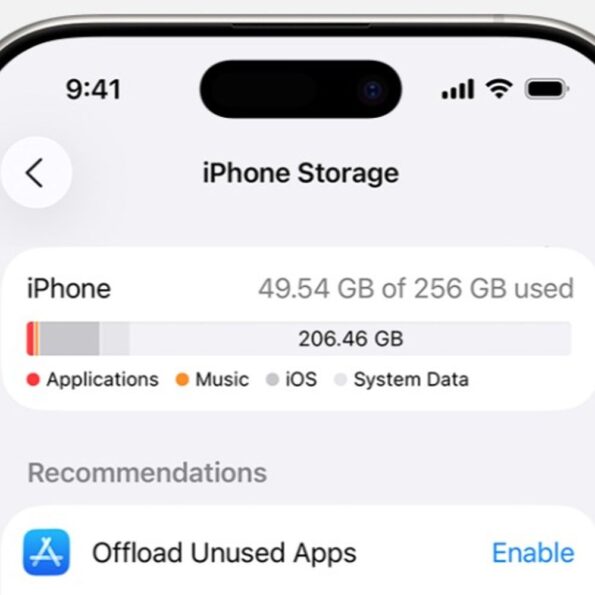
At first, I did what everyone does. I went to Settings > General > iPhone Storage, checked which apps were taking up space, and deleted a few. Problem solved… temporarily. But the issue kept coming back.
So instead of constantly deleting apps and photos, I tried something different. I dug deeper and found a few lesser-known tricks that helped me free up 7–8GB of space, without losing any important data. Here’s exactly what worked for me. Start with the basics (Do these first) Before jumping into advanced fixes, try these simple methods. They work for most people. 1. Review Large Apps and Files
Here, you’ll see a detailed breakdown of what’s using space. Delete apps you don’t use or large files you no longer need. 2. Move Photos to iCloud Photos and videos usually take up the most storage. If you use iCloud: This keeps full-resolution photos in iCloud and smaller versions on your phone. You can still access everything, but your storage usage drops. 3. Clear Safari Cache Safari stores browsing data, such as history and website files. To clear it: This can instantly free up some space. 4. Remove Downloads From Streaming Apps Apps like Netflix or Prime Video often auto-download shows. This alone can free up several gigabytes. If you’ve tried all this and your iPhone is still running out of space, here’s what actually made a big difference for me. Also read: India’s Sarvam AI launches AI chat app ‘Indus.’ Is this the Indian alternative of ChatGPT we’re all waiting for?
Other different methods Method 1: Clear ‘System Data’ using the date trick One hidden storage hog is ‘System Data,’ temporary files, logs, and cache created by iOS. Apple doesn’t give a direct ‘Clear System Data’ button. But there’s a workaround that surprisingly works. What this did: It cleared nearly 7–8GB of storage. Here’s how to do It: Step 1
– Go to Settings > General > iPhone Storage
– Check how much space ‘System Data’ is using. Step 2
– Go back to General
– Tap Date Time Step 3
– Turn off Set Automatically Step 4
– Manually set the date 3 months ahead
(Example: If today is Feb 2026, set it to May 2026) You don’t need to be exact, just move it forward by a few months. Step 5:
– Turn off your iPhone
– Wait a few minutes Step 6:
Turn your iPhone back on
– Go to Settings > General > iPhone Storage
– Check if storage has reduced. Step 7:
– Go back to Date Time
– Turn Set Automatically back on. Why this works: iOS clears temporary system files when it detects they are ‘expired.’ Changing the date forces the system to clean up older cache files. Also read: What will happen to your Instagram account after your death?
Method 2: Backup to iCloud and Restore (Deep clean reset) If System Data is still too high, this is the most effective method. When you restore from an iCloud backup, iOS only brings back essential data, not unnecessary system junk. It’s like giving your iPhone a fresh start. Important: Resetting deletes everything. Make sure your backup is complete before proceeding. Step-by-Step: Backup and Reset Step 1: Back up to iCloud – Go to Settings – Tap your Apple ID profile – Tap iCloud – Select iCloud Backup – Tap Back Up Now Make sure your iCloud has enough space. Apple provides 5GB free. If needed, temporarily remove large files before backing up. Step 2: Reset your iPhone – Go to Settings – Tap General – Scroll down and select Transfer or Reset iPhone – Tap Erase All Content and Settings – Confirm and proceed Your phone will restart and begin setup again. Step 3: Restore from iCloud Backup While setting up: – Choose Restore from iCloud Backup – Sign in with your Apple ID – Select your latest backup – Wait for the restore process to finish. After restoring, I went to Settings > General > iPhone Storage and noticed that the extra system clutter was gone. My iPhone felt smoother and faster, and the storage usage looked much more organised. Also read: Was Epstein working on memory-erasing technology? What is ‘trans magnetic stimulation’?
Fix storage the smart way
If your iPhone 14 Plus, or any 128GB iPhone, keeps running out of storage, repeatedly deleting apps isn’t a long-term solution. Start with the basics, and if that still doesn’t fix the problem, you can try more advanced steps. In my case, these methods helped me free up space without losing apps, photos, or important files, and that’s far better than constantly dealing with the “Storage Almost Full” warning.